Feb 23, 2013

How to Download Youtube Video on Ubuntu / Linux

Similar post:


There are  many ways to download YouTube videos. I'm going to tell you very easy and headache free method.

Method I : FlashGot


  •  For installation and other detail Click here .
  •  [To transfer link of video to download manager automatically like uGet Downloader (similar to Internet Download Manager or Orbit Downloader on windows machine) follow both methods]
  • After installing FlashGot and Uget. Open any video on YouTube right click then select FlashGot Options .
  •  In FlashGot Options select tab FlashGot Media and Download Manager option Select Uget as suggested in image:


  • Now to download video right click anywhere in Firefox and select FlashGot Media and follow the steps as given in the Screenshots below:


Select files to download


Method II : Easy YouTube Video Downloader:(Best Method)

[To transfer link of video to download manager automatically like uGet Downloader (similar to Internet Download Manager or Orbit Downloader on windows machine) follow both methods]

  • To install "Easy YouTube Video Downloader" open Firefox.
  • Click on Tools tab and select Add-ons or press (Ctrl+Shift+A).
  • In search box type "Easy YouTube Video Downloader" and press Enter key.
  • Select "Easy YouTube Video Downloader" and click on install as shown in figure below:


  • Installation is done now. Restart Firefox to use "Easy YouTube Video Downloader". Now, when ever you'll watch any YouTube video, in right side of like/dislike button,there'll be a Download button. To download video, click on Download button and select desire quality of video from menu. If you have installed FlashGot+Uget (1st method), then your download will be automatically transfer to uGet (or Firefox will handle) as shown in screenshot:


Free Youtube Downloader for Ubuntu / Linux
Best Youtube Downloader for Ubuntu / Linux
Download Youtube Video on Ubuntu / Linux
How to Download Youtube Video
Download Online Video on Ubuntu / Linux

Downloader for Ubuntu/Linux using FlashGot

Similar Post:


FlashGot!  


FlashGot is the free add-on for Firefox and Thunderbird, meant to handle single and massive ("all" and "selection") downloads with several external Download Managers.
FG contextual menu
  • Many Windows-only download manager are supported on Linux through Wine!
FlashGot turns every supported download manager into a download manager for Firefox! 

Installation?


  • Installing FlashGot
  1. To install FlashGot add-on for Firefox, open Firefox and click on "Tools" tab and select "Add-ons" OR press "Ctrl+Shift+A".
  2. In search box type "FlashGot" and press enter.
  3. Select "FlashGot" and click on install button to install it as shown in figure above.
  4. Now installation is done. To use FlashGot restart  Firefox.
    [You can also install FlashGot otherwise. Go to http://flashgot.net/getit and click on install button. But I recommend you to go for above method]
  • Installing UGet Downloader
  1. To install UGet open Terminal(Ctrl+Alt+T) and type "sudo apt-get install uget".
    You can use other downloader some are given in introduction section.

ScreenShots:


  • Free Downloader for Ubuntu / Linux.
  • Best Downloader for Ubuntu / Linux.
  • Downloader for Ubuntu / Linux Without Wine.


Apr 1, 2012

How to Update Ubuntu offline/ Installing and updating Ubuntu Without Internet Connection

Hi friends, I am going to tell you "How to Install/Update Software in UBUNTU offline". But You have to download files from other system or you can get it from any other ubuntu System [having same version as your].

1. Getting Files

  • OR you can also get file from pre-install updated ubuntu machine. Becouse During updating ubuntu all downloaded files were stored by OS at location  /var/cache/apt/archive. So you can copy it from this location to your usb drive.

2.Setting Up Local Repo 

Go to this web address http://archive.ubuntu.com/ubuntu/dists/ and then to the SuiteCodename of the Ubuntu installed in your hard disk (intrepid, jaunty, karmic, ...) and download the files :
  • Release
  • Release.gpg
  • And the Contents files for your architecture (i.e Contents-i386.gz ,if you architecture is i386).
Later, go to the component (main, multiverse, restricted, universe) and architecture (i.e. binary-i386/ in /dists/karmic/main/) that you want in your local repository, and download the files:
  • Packages.bz2
  • Packages.gz
  • Release
Optionally, you can download the same files for the source directory (its packages are architecture independent).
Now, you have to store the files in your local Ubuntu repository in the same order. For example:
  • In /home/repository/dists/karmic you would have the files: Contents-i386.gz , Release and Release.gpg
  • And in /home/repository/dists/karmic/main/binary-i386 the files: Packages.bz2 , Packages.gz and Release

3.Add the local repository in your sources list


Go to  System -> Administrator -> Software Sources the under tab "other software" click on "Add"  to add the offline repository, stored in the /home/repository directory :
deb file:///home/repository SuiteCodename main restricted universe multiverse 

Where:
  • SuiteCodename is intrepid, jaunty, karmic ...
  • You can include some or all the components ( main, multiverse, restricted, universe).


Mar 1, 2012

Installing Google Chrome In Ubuntu

To install Google Crome in Ubuntu type "sudo apt-get install google-chrome" in terminal.

                     OR

Go to www.google.com/chrome and download .deb file and install directly by double clicking. 

Lanshark

What is Lanshark?
Lanshark is a free filesharing tool for local area networks. Lanshark allows you to share files with other users in the same network more efficiently. It automatically detects other lanshark users in the same Network and lets you browse trough their shares. Lanshark has a very fast search function that allows you to search through all the shares in the whole network in just a few seconds!

It works with both Linux and Microsoft Windows System.
  • Type the below code in terminal and hit enter
  • Terminal Command
      • wget https://dl.dropboxusercontent.com/u/14796920/lanshark-master.zip
      • unzip lanshark-master.zip
      • cd lanshark-master
      • python setup.py build
      • sudo python setup.py install
      Configuration
      •  After installation you can open it from Applications->Internet->Lanshark.
      • Click on 'share path' to select location to share on LAN.
      • To view your share file click on Browser tab.
      • From tab Lanshark ->Open Web Interface you can find you address over lan. By using this address you can browse your file from any system by using a web Browser.


      Here my address is 106.201.223.156:31337 and shared files at that address. So to access my file from other Systems I have to type this address in web browser at that system. You  can also change it from Advanced tab.

      May 1, 2011

      How to Install Orbit Downloader On Ubuntu(Linux)

      Similar post:


       Hi friends, As we know that internet downloader is important and efficient tool for downloading files over internet. Here I am going to tell you how to install Orbit Downloader (orbit.exe) on Ubuntu. 

      As there is not any compatible package of Orbit for UBUNTU. So, we'll  use windows executable file (used on microsoft windows xp/vista/7) by using wine.


      1. Install Wine on UBUNTU : click here
      2. Download and run Orbit.exe : Open with wine Windows program loader.
        [After sometime a setup will start. Follow the instruction and install it same as windows installation]
        Setup
      3. Now Orbit is installed on your ubuntu machine but it requires some dll files to run. To make it run you should have to install following dll files.[You can also get this files from windows xp in C:/Windows/Systm32]
        [1] mfc42.dll         download and extract
        [2] msvcp60.dll   download and extract 

      4. Go to wine directory: Applications > Wine > Browse C: Drive
      5. Go to Windows folder and copy both dll files in system and system32
        You can also go to directory through your home folder. Open your home Folder press Ctrl+H. Now you'll see some hidden folders start with dot(.). Now go to directory .wine/drive_c/Windows and copy both dll files to directory system and System32 folders. 
      Now You can run Orbit Downloader From your Desktop shortcut.


      • Free Downloader for Ubuntu / Linux
      • Best Downloader for Ubuntu / Linux
      • Downloader for Ubuntu / Linux Without Wine
      • How to install Orbit Downloader in WINE

      Apr 30, 2011

      Installing Software in Ubuntu

      There are two ways to install any program( Consider I want to install Wine) on UBUNTU. 

      I. Installing by Terminal
      Run Terminal  go to----> Applications-->Accessories-->Terminal. 
      Type in terminal "sudo apt-get install wine" and insert password if asks.


      II. Installing By Ubuntu software Center or Add/Remove Program.

      Go to Applications -->Ubuntu software center or Add/remove Program.
      Now search for what you want to install (in my case wine).


      Now select from search result and click on button Install to install it.

      Apr 29, 2011

      Connecting 3G USB modem on Ubuntu

      Hi friends, I have a micromax 352 3G usb modem and I m using it with ubuntu 10.04(LTS). I am writing here 'How to use USB DATA CARD/MODEM on Ubuntu'. It is very easy to use and works with other 3G usb modems. I hope that it will be helpful for you guys.


      Step by Step Guide to use USB Modem on Ubuntu

      1. Download Sakis3G Script : click here to download
      2. Now go to Downloaded file, extract it and make it executable : click on file and go to permission tab and mark allow execute file as program
      3. Now double click on file (sagks3G) and select : Run or Run in Terminal    
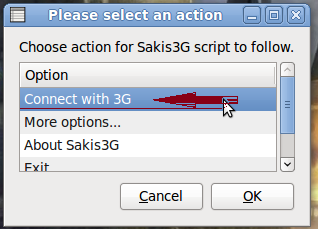
      4. Select Connect with 3G


        [After running 3G file, it is also possible that you will see another window asking you for select a device from menu.Select usb device.]
      5. Select your APN or click on Custom APN And Enter your APN


      6. After this step prompt windows'll appear and ask for Username & password. So enter anything (abc etc.). After few moment a message will be prompt to say you are connected. Click on connection information to see details.


        DONE!!!! & HAPPY INTERNETing!!

      Apr 15, 2011

      Others

      OTHERS.HTML
      3G USB Modem Programming
      Proxies Wordpress
      MYSQL Tomcat
      Orbit Downloader Kompozer
      KDE Gparted
      NetBean Compiz
      Cheese Wine

      Utilities


      • Adobe Reader 
      • Picasa
      • Winrar
      • Wine
      • UnetBootin
      • Gimp Photo Editor

      Programming

      Geany
      MySQL
      Kompozer

      Internet

      INTERNET
      Google Desktop
      BeanNet
      Apache/Tomcat
      DC++
      Opera Web Browser
      Jap/Jondo

      Media Players

      SER.HTML

      VLC Media Payer

      K-Media Player

      XBMC Media Playrer

      XINE Media Player

      Real Player

      Unity

      Unity is going to replace GNOME as default desktop interface in ubuntu 11.04.


      Unity provides a complete, simple, touch-ready environment that integrations your applications and your workflow.

      Unity is designed for netbooks and related touch-based devices. It includes a new panel and application launcher that makes it fast and easy to access preferred applications, such as the browser, while removing screen elements that are rarely used in mobile and netbook computing.
      Unity has a vertical task management panel on the left-hand side and a menu panel at the top of the screen. Using a sidebar for task management conserves vertical screen space, which is much more valuable on a widescreen netbook. The task panel displays icons for commonly-used applications and programs that are currently running. Clicking on an icon will give the target application focus if it is already running or launch it if it is not already running. If you click the icon of an application that already has focus, Unity will activate an Expose-style view of all the open windows associated with that application.......more

      Wine

      Wine lets you run Windows software on other operating systems. With Wine, you can install and run these applications just like you would in Windows.
      Wine is still under active development. Not every program works yet, however there are already several million people using Wine to run their software.

      Open Source and User Driven

      Wine will always be free software. Approximately half of Wine's source code is written by volunteers. The rest is sponsored by commercial interests, especially Codeweavers who sell a supported version of Wine.
      Wine is heavily reliant on its user community. User tests fill our Application Database to track how well programs work, and all the answers in the forums come from volunteers.

      Learn more:


             How To Install Wine in UBUNTU        

      KDE

      KDE is an international team co-operating on development and distribution of Free, Open Source Software for desktop and portable computing.

      For users on Linux and Unix, KDE offers a full suite of user workspace applications which allow interaction with these operating systems in a modern, graphical user interface. This includes Plasma Desktop, KDE's innovative desktop interface. Other workspace applications are included to aid with system configuration, running programs, or interacting with hardware devices. While the fully integrated KDE Workspaces are only available on Linux and Unix, some of these features are available on other platforms.
      In addition to the workspace, KDE produces a number of key applications such as the Konqueror web browser, Dolphin file manager and Kontact, the comprehensive personal information management suite. However, list of applications includes many others, including those for education, multimedia, office productivity, networking, games and much more. Most applications are available on all platforms supported by the KDE Development.
      KDE also brings to the forefront many innovations for application developers. An entire infrastructure has been designed and implemented to help programmers create robust and comprehensive applications in the most efficient manner, eliminating the complexity and tediousness of creating highly functional applications.
      It is our hope and continued ambition that the KDE team will bring open, reliable, stable and monopoly-free computing to the everyday user....more

      Gnome

      The GNOME Project is a community that makes great software. GNOME is Free Software: all our work is free to use, modify and redistribute. Everyone is welcome to participate in its development.

      The GNOME Project was started in 1997 by two then university students, Miguel de Icaza and Federico Mena. Their aim: to produce a free (as in freedom) desktop environment. Since then, GNOME has grown into a hugely successful enterprise. Used by millions of people across the world, it is the most popular desktop environment for GNU/Linux and UNIX-type operating systems. The desktop has been utilised in successful, large-scale enterprise and public deployments, and the project’s developer technologies are utilised in a large number of popular mobile devices...more

      Open Source

      The Open Source Definition (Annotated)

      Version 1.9

      The indented, italicized sections below appear as annotations to the Open Source Definition (OSD) and are not a part of the OSD. A plain version of the OSD without annotations can be found here.

      Introduction

      Open source doesn't just mean access to the source code. The distribution terms of open-source software must comply with the following criteria:

      1. Free Redistribution

      The license shall not restrict any party from selling or giving away the software as a component of an aggregate software distribution containing programs from several different sources. The license shall not require a royalty or other fee for such sale.
      Rationale: By constraining the license to require free redistribution, we eliminate the temptation to throw away many long-term gains in order to make a few short-term sales dollars. If we didn't do this, there would be lots of pressure for cooperators to defect.

      2. Source Code

      The program must include source code, and must allow distribution in source code as well as compiled form. Where some form of a product is not distributed with source code, there must be a well-publicized means of obtaining the source code for no more than a reasonable reproduction cost preferably, downloading via the Internet without charge. The source code must be the preferred form in which a programmer would modify the program. Deliberately obfuscated source code is not allowed. Intermediate forms such as the output of a preprocessor or translator are not allowed.
      Rationale: We require access to un-obfuscated source code because you can't evolve programs without modifying them. Since our purpose is to make evolution easy, we require that modification be made easy.

      3. Derived Works

      The license must allow modifications and derived works, and must allow them to be distributed under the same terms as the license of the original software.
      Rationale: The mere ability to read source isn't enough to support independent peer review and rapid evolutionary selection. For rapid evolution to happen, people need to be able to experiment with and redistribute modifications.

      4. Integrity of The Author's Source Code

      The license may restrict source-code from being distributed in modified form only if the license allows the distribution of "patch files" with the source code for the purpose of modifying the program at build time. The license must explicitly permit distribution of software built from modified source code. The license may require derived works to carry a different name or version number from the original software.
      Rationale: Encouraging lots of improvement is a good thing, but users have a right to know who is responsible for the software they are using. Authors and maintainers have reciprocal right to know what they're being asked to support and protect their reputations.

      Accordingly, an open-source license must guarantee that source be readily available, but may require that it be distributed as pristine base sources plus patches. In this way, "unofficial" changes can be made available but readily distinguished from the base source.

      5. No Discrimination Against Persons or Groups

      The license must not discriminate against any person or group of persons.
      Rationale: In order to get the maximum benefit from the process, the maximum diversity of persons and groups should be equally eligible to contribute to open sources. Therefore we forbid any open-source license from locking anybody out of the process.

      Some countries, including the United States, have export restrictions for certain types of software. An OSD-conformant license may warn licensees of applicable restrictions and remind them that they are obliged to obey the law; however, it may not incorporate such restrictions itself.

      6. No Discrimination Against Fields of Endeavor

      The license must not restrict anyone from making use of the program in a specific field of endeavor. For example, it may not restrict the program from being used in a business, or from being used for genetic research.
      Rationale: The major intention of this clause is to prohibit license traps that prevent open source from being used commercially. We want commercial users to join our community, not feel excluded from it.

      7. Distribution of License

      The rights attached to the program must apply to all to whom the program is redistributed without the need for execution of an additional license by those parties.
      Rationale: This clause is intended to forbid closing up software by indirect means such as requiring a non-disclosure agreement.

      8. License Must Not Be Specific to a Product

      The rights attached to the program must not depend on the program's being part of a particular software distribution. If the program is extracted from that distribution and used or distributed within the terms of the program's license, all parties to whom the program is redistributed should have the same rights as those that are granted in conjunction with the original software distribution.
      Rationale: This clause forecloses yet another class of license traps.

      9. License Must Not Restrict Other Software

      The license must not place restrictions on other software that is distributed along with the licensed software. For example, the license must not insist that all other programs distributed on the same medium must be open-source software.
      Rationale: Distributors of open-source software have the right to make their own choices about their own software.

      Yes, the GPL v2 and v3 are conformant with this requirement. Software linked with GPLed libraries only inherits the GPL if it forms a single work, not any software with which they are merely distributed.

      10. License Must Be Technology-Neutral

      No provision of the license may be predicated on any individual technology or style of interface.
      Rationale: This provision is aimed specifically at licenses which require an explicit gesture of assent in order to establish a contract between licensor and licensee. Provisions mandating so-called "click-wrap" may conflict with important methods of software distribution such as FTP download, CD-ROM anthologies, and web mirroring; such provisions may also hinder code re-use. Conformant licenses must allow for the possibility that (a) redistribution of the software will take place over non-Web channels that do not support click-wrapping of the download, and that (b) the covered code (or re-used portions of covered code) may run in a non-GUI environment that cannot support popup dialogues.